
Customize the widget
Make the OneTwoAgent widget look and behave like part of your product, without CSS: theme, colors, 45 Google Fonts, bubble shapes, launcher icons and animations, a Home screen, Voice and where the widget shows.
Where you customize
Open Channels -> Widget. Every change shows in the live preview as you edit.
- Preview Home, Chat and Talk on desktop and on mobile.
- No CSS: colors, fonts, shapes, launcher, Home screen and Voice are all settings.
- The same settings apply wherever the widget is installed: your website and your app.
Surfaces and the first screen
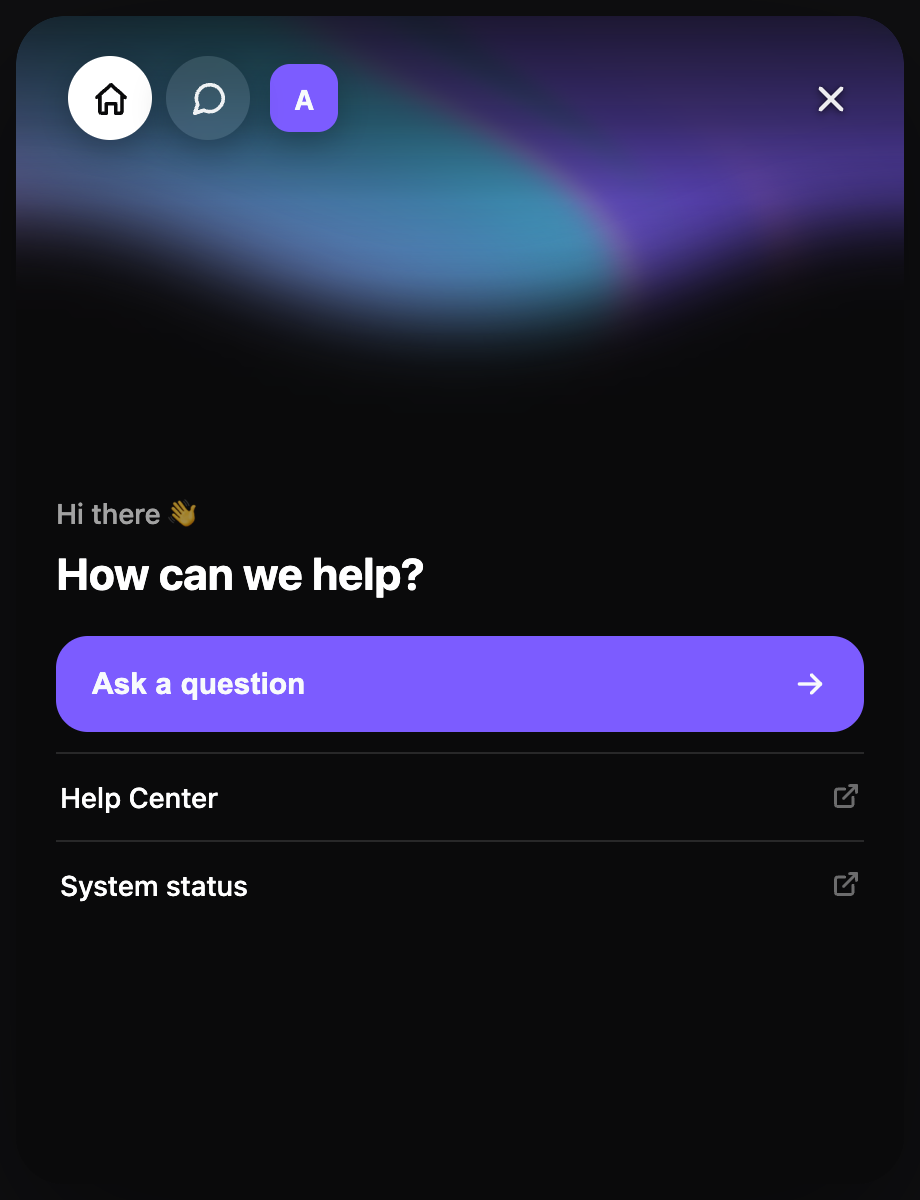
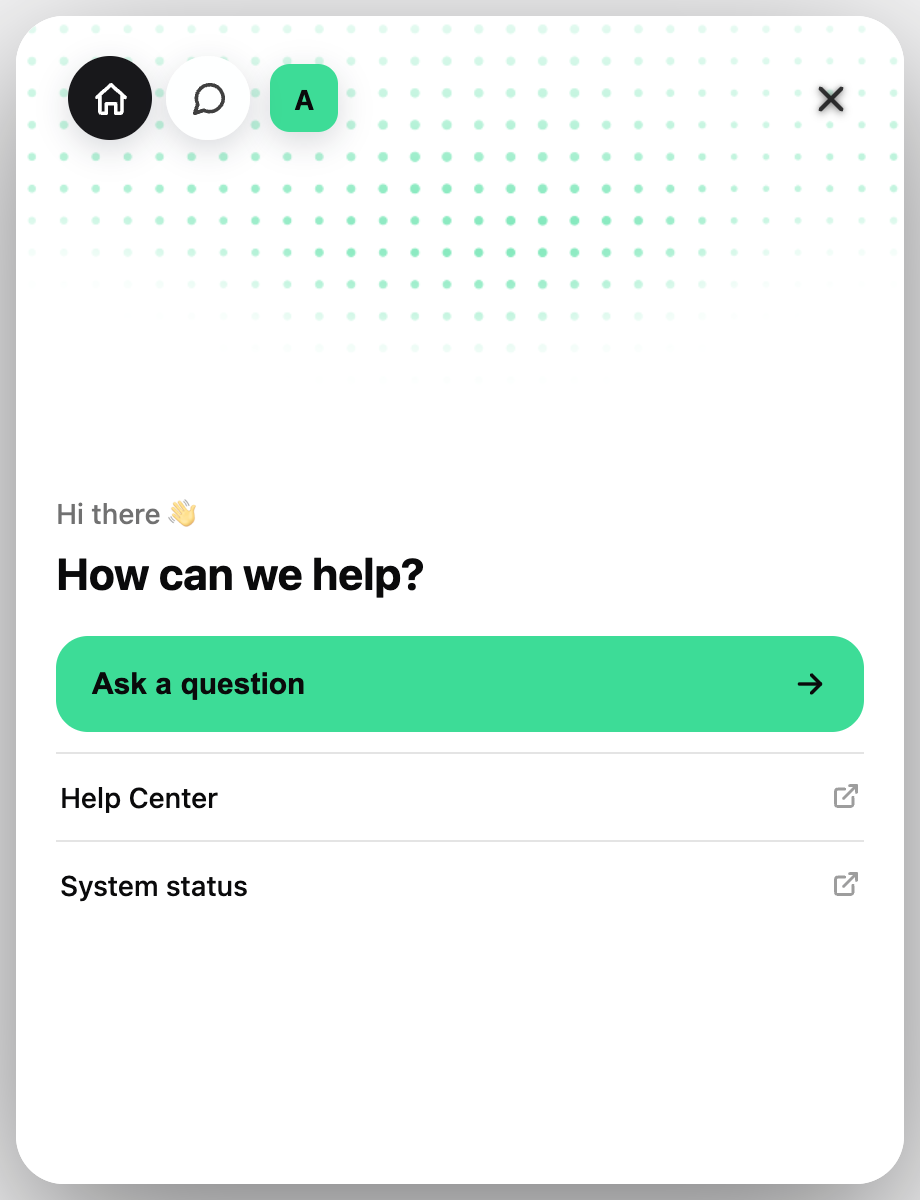
- Home: a branded start screen with your headline, a primary button and links.
- Chat: the conversation with the AI support agent and your team.
- Talk: Voice conversation with the agent.
- Choose which of the three the widget opens on.
Theme and colors
- Light or dark theme.
- Colors for the header, assistant and customer bubbles, chat background, input, send button, launcher, buttons and close button.
- The close button can have its own background and border.
Typography
- 45 Google Fonts: sans-serif, serif and monospace.
- Set the font separately for the header, assistant messages, customer messages, input and launcher.
- Each element has its own font size.
Messages and header
- 6 bubble shapes, applied to assistant messages or to both sides.
- A choice of send icon.
- Header: assistant name, status line and an optional avatar or logo.
Launcher
- 15 launcher icons and your own launcher color.
- Optional launcher text, with icon-only on mobile if you prefer.
- 13 launcher animations to draw attention without getting in the way.
Home screen
- Headline, a short line above it and a primary button label.
- Up to 3 links, for example to your docs, status page or pricing.
- An animated orb, with a texture you can also use in Talk.
- 16 animated background styles, including mesh, halo, rays, glow, stars, dots, grain and halftone, or a plain background.
- Tint the background with one of your widget colors or a preset color, and set intensity and motion: still, calm or live.
Talk (Voice)
- Turn Talk on or off.
- Pick a voice from the voice catalog, filtered by language, accent and gender, and preview it before you choose.
- Write the spoken welcome message and choose the orb texture.
- How Voice works: Voice, files and screenshots.
Copy and behavior
- Welcome message, input placeholder and launcher text.
- File uploads on or off.
- Compact mode for a smaller widget.
Where the widget shows
- Allowed domains: the widget only loads on your domains.
- Page restrictions: allowed pages and excluded pages, such as /checkout or /account.
- Install steps: Website Widget.
Related guides
Continue with the next setup steps around channels, booking, scheduling, or automation.
Install and brand the widget; chat, Voice, files and languages.
Voice in the widget, voice notes, screenshots, files and links.
CLI + coding agent setup, live account data, support views and the manual integration architecture.
Common questions
Do I need CSS or a developer to brand the widget?
No. Every design and behavior setting is in Channels -> Widget, and each change shows in the live preview as you edit.
Can the widget use my brand font?
Choose from 45 Google Fonts (sans-serif, serif and monospace), set separately for the header, assistant messages, customer messages, input and launcher, each with its own size.
Can the widget open straight into Voice?
Yes. Choose Home, Chat or Talk as the screen the widget opens on.
Can I hide the widget on some pages?
Yes. Turn on page restrictions and list allowed or excluded pages, for example /checkout. Allowed domains stop the widget code from being reused on other sites.